What MCP is for
MCP connects the AI agent to tools provided by another service. A knowledge base supplies instructions and reference information; a tool retrieves a specific result when the customer asks.
For example, the customer asks “What is the status of order 12345?”. The agent requests the status from the order service and uses its response.
The MCP server defines which tools it provides and what they do. Depending on its configuration, tools can retrieve data or perform actions. In Chat, choose which available tools the AI may use.
A server must be enabled separately in each channel. Adding it in Integrations alone does not give the AI access to its tools.
Before you start
You need an owner account, a connected channel, the HTTPS server URL and an access token from the service administrator. Ask support to approve the server address before connecting.
The token comes from the MCP service, not from the Chat API tokens tab. The administrator should provide a compatible Streamable HTTP endpoint; a website address alone is not an MCP server.
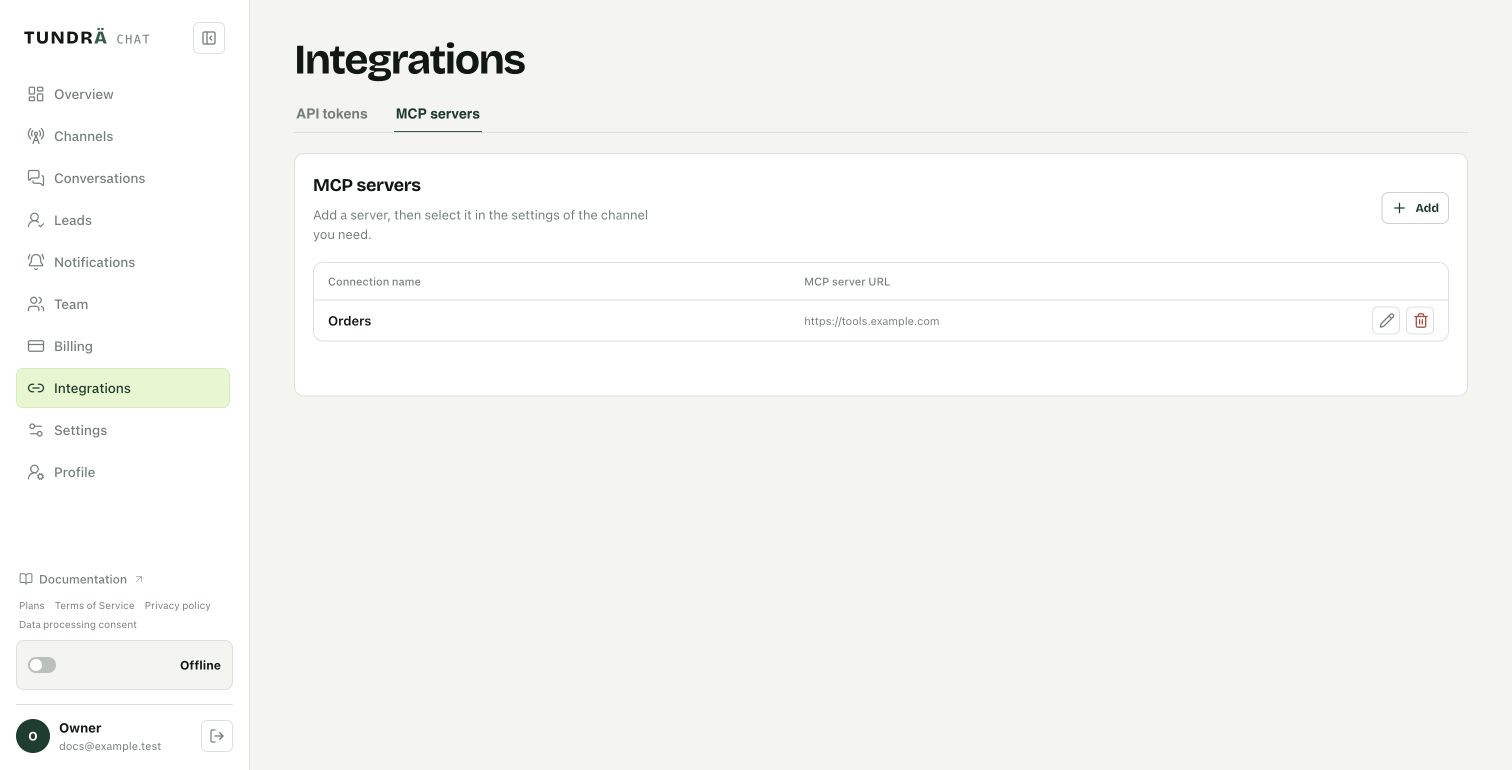
1. Open MCP servers
Go to Integrations → MCP servers and click Add.
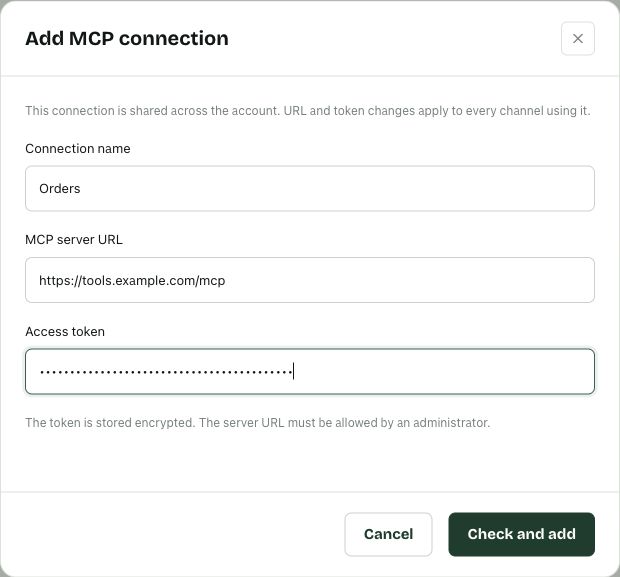
2. Enter the server details
| Field | What to enter |
|---|---|
| Connection name | A short name, such as “Orders” |
| MCP server URL | The address provided by your administrator, such as https://tools.example.com/mcp |
| Access token | The token issued for this service |
Click Check and add. Wait for the server to appear in the list. The example address in the screenshot is not a working service.
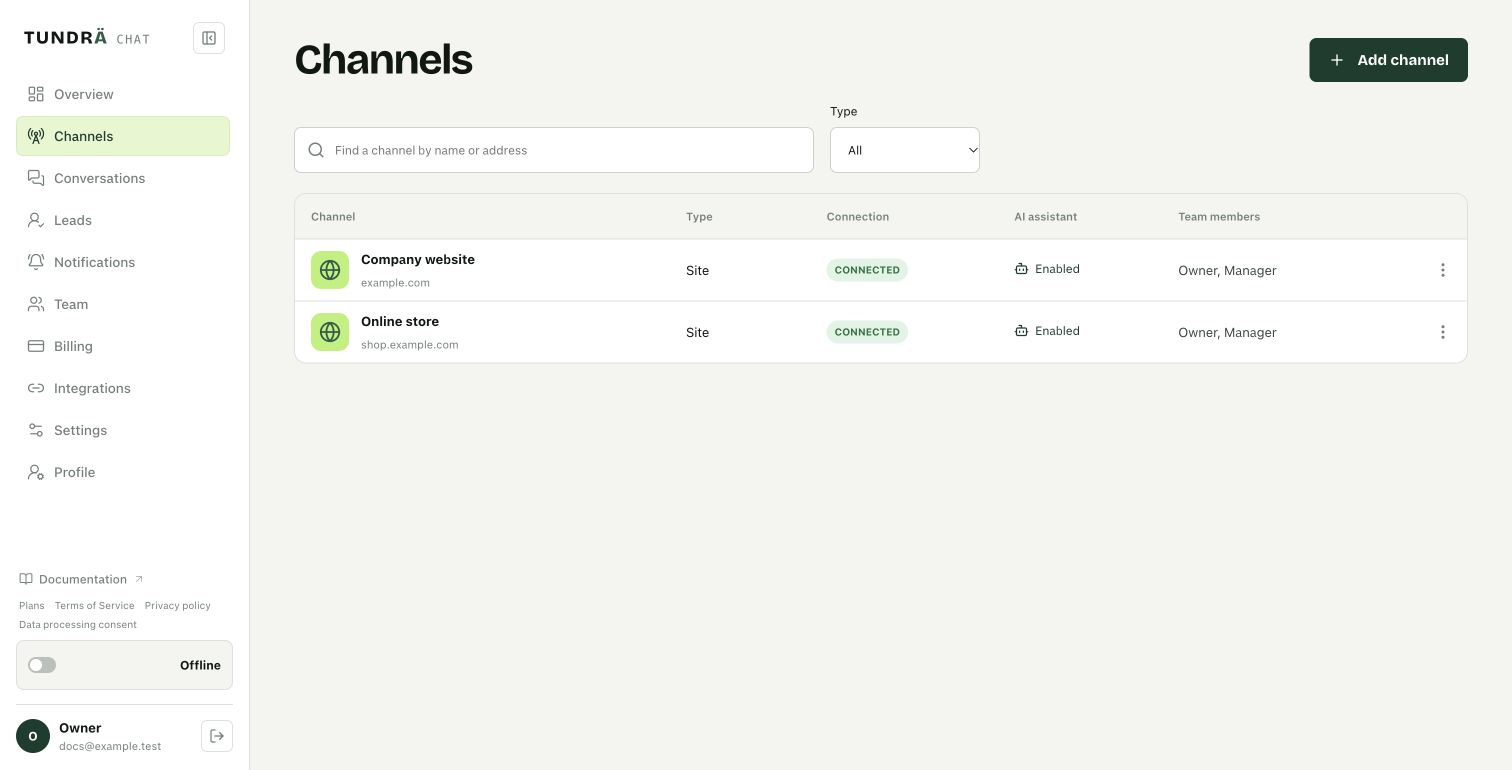
3. Open the channel
Go to Channels, click the required channel and open AI tools in its settings. Repeat this step for each channel that should use the server.
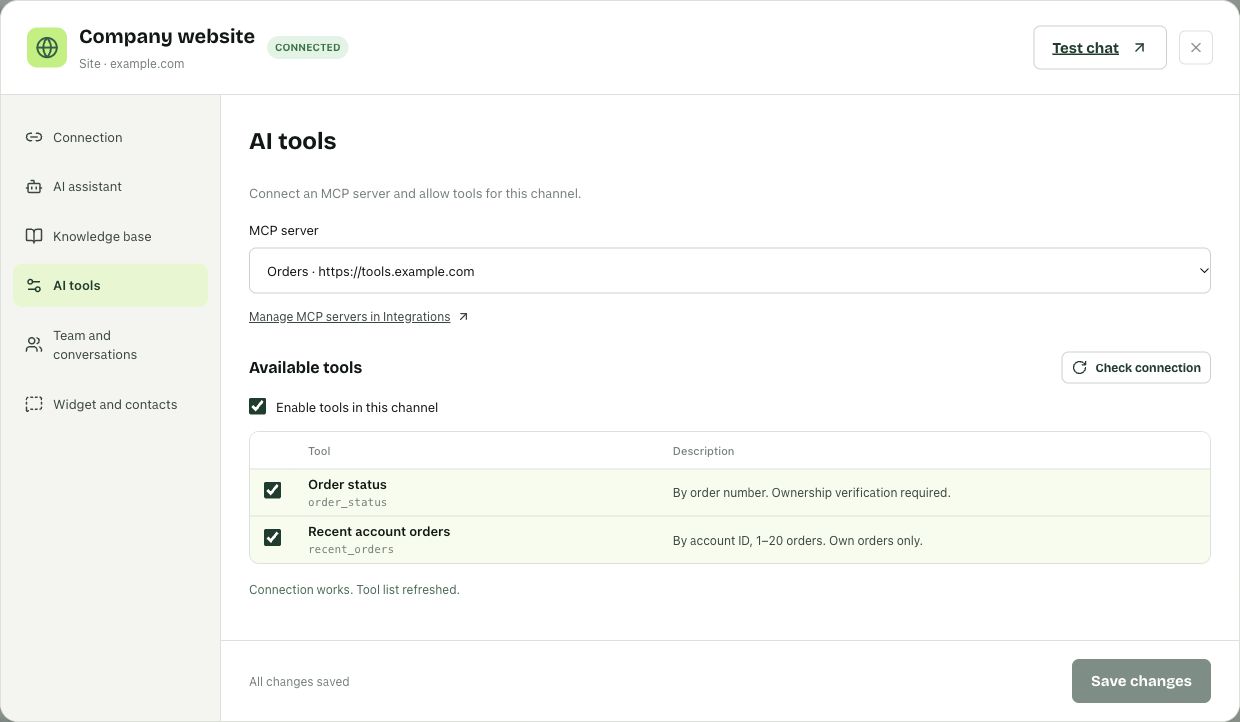
4. Choose and allow tools
- Select your connection under MCP server.
- Click Check connection to load the supported tools.
- Check Enable tools in this channel.
- Select the tools you need and click Save changes.
Read each tool’s description before enabling it. The screenshot shows an example server with order tools; your server may provide a different list.
5. Test a customer question
For a website channel, click Test chat at the top of the channel settings. For a messenger, write to the connected account.
- Check that the channel’s AI assistant is enabled and a human operator has not taken over.
- Ask a question that requires one of the enabled tools. For example, if your server provides an order lookup: “What is the status of order 12345?”. Use your own test data.
- Provide the details requested by the tool. If the service requires identity verification, complete it. Never give the agent the server access token.
- Compare the answer with the source service.
Access rules and any identity checks depend on your server. A tool error should not be treated as a successful result.
Change a token or turn tools off
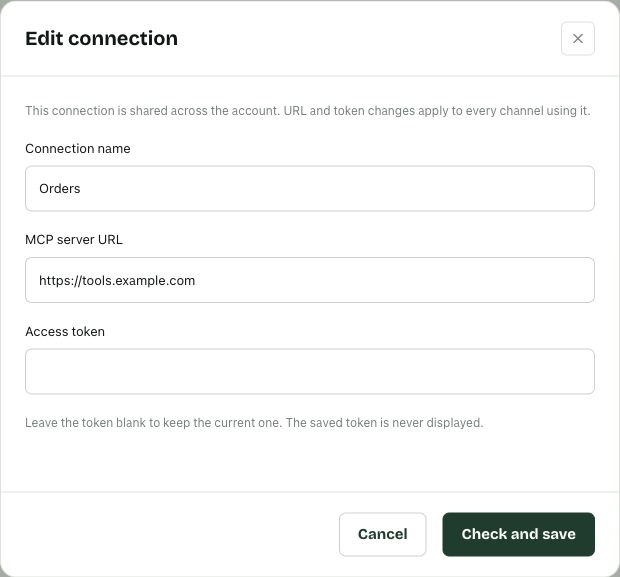
To replace a token, go to Integrations → MCP servers and click the edit icon. Enter the new token and click Check and save. Leave the field empty to keep the current token.
Changes to a server affect every channel using that connection. To disable tools in just one channel, uncheck Enable tools in this channel and save.
If it does not work
| Problem | What to check |
|---|---|
| The server will not connect | Approved URL, valid token and server availability |
| No tools are listed | The server publishes tools and the token grants access to them. Run the connection check again |
| The AI does not use tools | Correct channel, selected server, enabled tools and saved changes |
| The tool returns an error | Required inputs, token permissions and the connected service’s availability |
To change what a tool does or add one, configure it on your MCP server. Then check the connection again and review the tools enabled in the channel.
Chat screenshots use a demo account with example data. Click any image to view it at full size.
↑ Back to top