Before you start
- Sign in to the operator account on the computer where you normally work.
- Set your operator status to Online. The setup prompt is shown only to an available operator.
- Repeat this setup in every browser profile and on every computer or phone you use.
Enable notifications in the account
- 1
Open Notifications
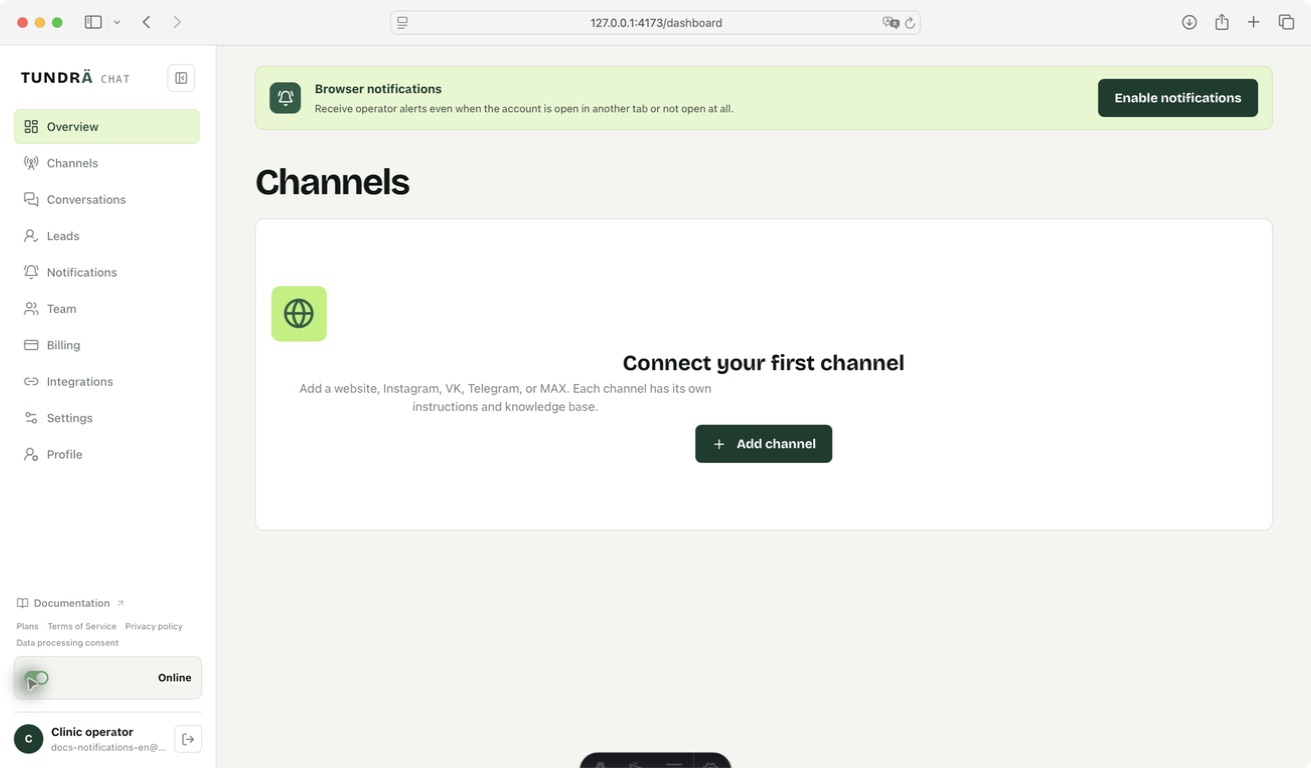
In the left menu, open Notifications. You can also use the setup prompt that appears after you switch to Online.
- 2
Find Browser notifications
The card shows whether this browser is subscribed. Click Enable notifications.
- 3
Confirm the browser request
When the browser asks for permission, choose Allow. Do not close or ignore this request.
- 4
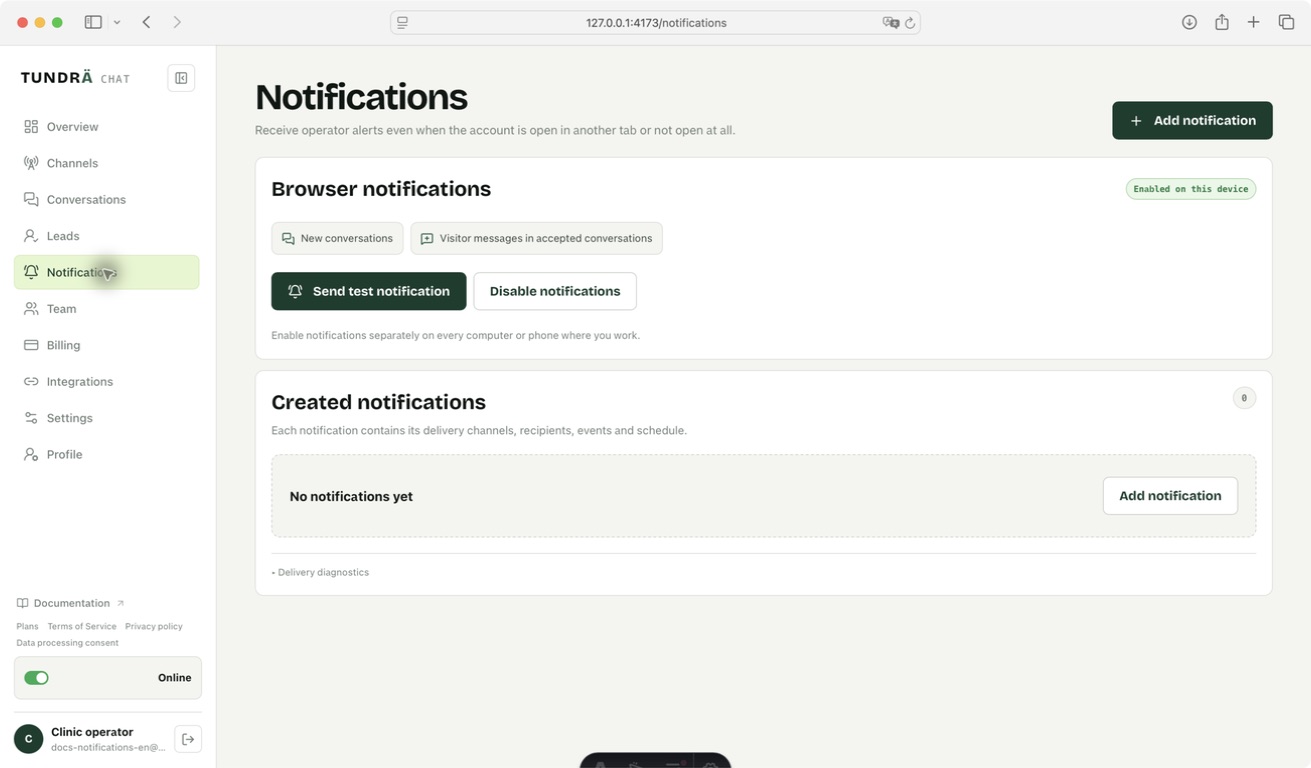
Check the status
The card must say Enabled on this device and show the Send test notification button.
If the browser has already blocked notifications
Open the site controls to the left of the address, allow Notifications, and reload the account. Then click Enable notifications again.
- Chrome or Edge: site controls → Site settings → Notifications → Allow.
- Safari: Settings → Websites → Notifications → Allow for this site.
- After changing permission, return to the account and reload the page.
Check that notifications work
Send a system test on the same computer.
- 1
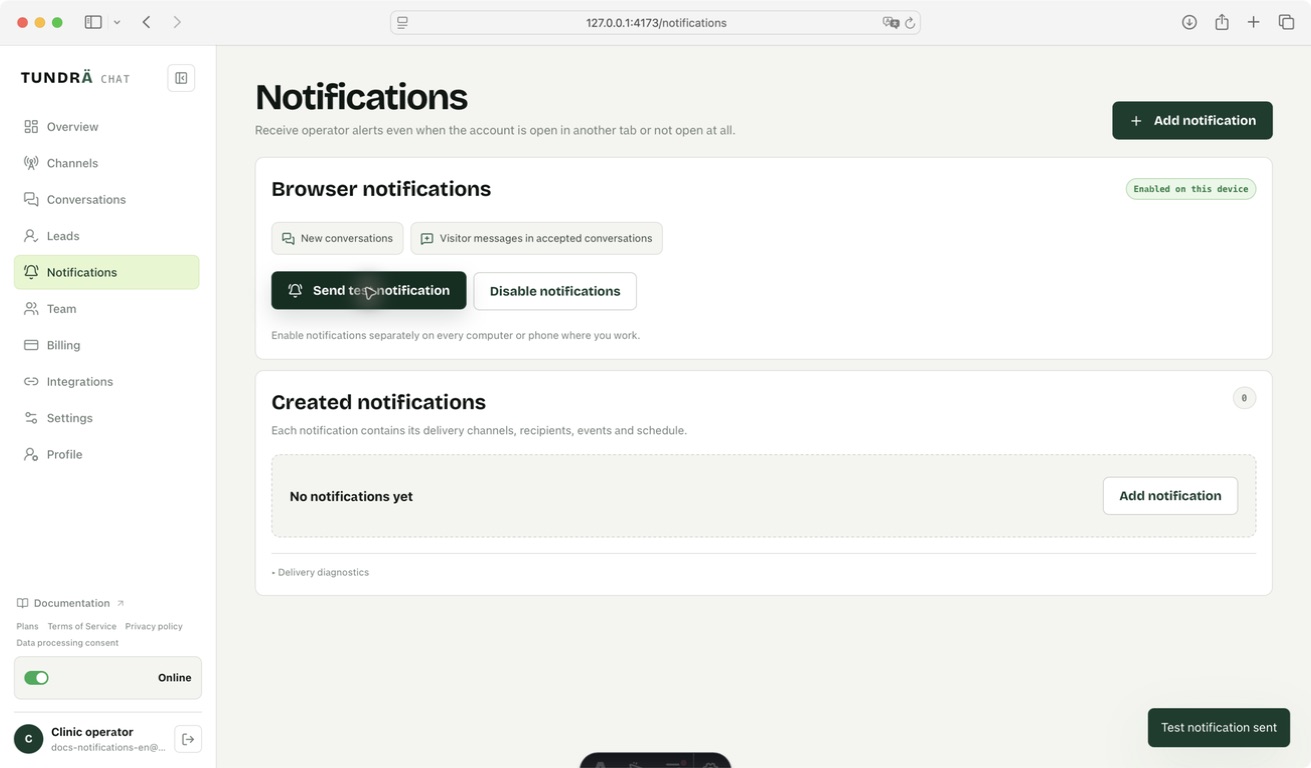
Click Send test notification.
- 2
A system banner titled “Notifications are working” must appear and the notification sound must play.
- 3
Click the banner. The account should open the Notifications section.
Check notifications for incoming messages
- Accept a test conversation as the operator.
- Open another account section, another browser tab, or a different application.
- Send a new incoming message in the test conversation. A banner with the sender name and message preview must appear; clicking it opens the correct conversation.
If no banner appears
The card says notifications are blocked
Allow notifications in the browser’s site settings, reload the page, and enable them again.
The card is enabled, but there is no system banner
In the operating-system notification settings, enable banners and sounds for your browser.
Notifications are silent
Increase system volume, enable notification sounds for the browser, and turn off Do Not Disturb or Focus.
Another computer receives nothing
Enable notifications separately on that computer and in that browser profile.